
RemoveTexts vs Shrinkpad
Side-by-side comparison to help you choose the right AI tool.

RemoveTexts
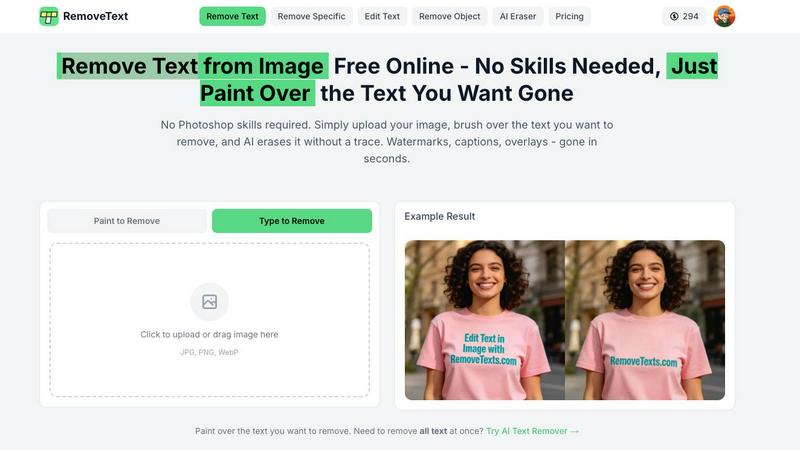
Effortlessly erase text and unwanted elements from images in seconds with RemoveTexts, the AI tool that transforms visuals without any design skills.
Last updated: March 11, 2026

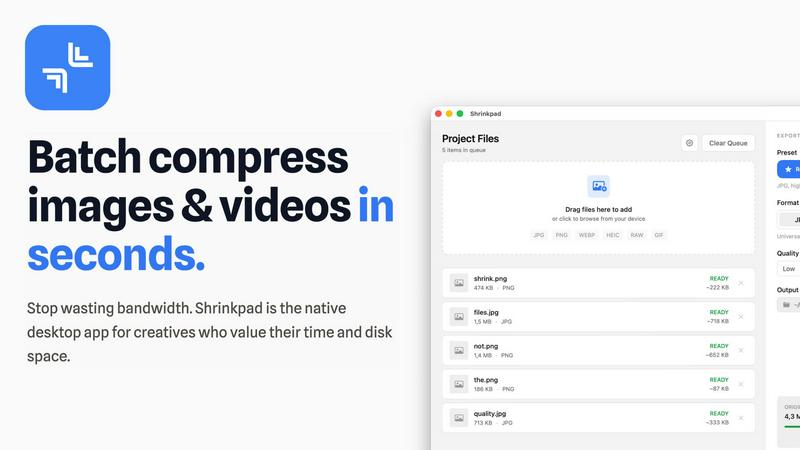
Transform your workflow with Shrinkpad, the ultimate tool for batch compressing images and videos on Mac effortlessly.
Last updated: February 28, 2026
Visual Comparison
RemoveTexts
Shrinkpad
Feature Comparison
RemoveTexts
Paint to Remove
With the Paint to Remove feature, users can brush over specific text areas in their images for precise control. This targeted approach allows you to eliminate only the text you want gone, ensuring that the rest of your image remains intact and visually appealing.
Auto Remove All
The Auto Remove All function leverages the power of AI to automatically detect and remove every text element from your image with just one click. This feature is perfect for those who need a quick solution for cleaning up images filled with text, saving valuable time and effort.
Edit & Replace Text
The Edit & Replace Text feature enables users to change existing text within images while perfectly matching the original style and font. This allows for seamless modifications, making it easy to update information or branding in your visuals without compromising quality.
Remove Objects
The Remove Objects feature goes beyond text removal, allowing users to erase unwanted objects, logos, and other visual elements from their images. This functionality ensures that you can create clean and professional visuals tailored to your needs.
Shrinkpad
Batch Compression
Shrinkpad revolutionizes the way assets are managed by offering unlimited batch processing capabilities. Users can drag and drop entire folders filled with images and videos, allowing the application to automatically detect and optimize all supported files in one go, streamlining workflows and saving valuable time.
Smart Detection
The application intelligently identifies over 30 different image formats, including RAW files, and all major video formats. This feature ensures that users can process a diverse range of media types simultaneously, with Shrinkpad applying the optimal compression settings tailored for each specific file type.
Privacy Protection
With Shrinkpad, privacy is paramount. All processing occurs locally on the user's machine, ensuring that no files are ever uploaded to the cloud. This guarantees that sensitive and creative assets remain secure and confidential, allowing users to work with peace of mind.
Auto-Renaming and Metadata Stripping
Shrinkpad offers powerful features that enhance workflow efficiency, such as automatic renaming and metadata stripping. Users can effortlessly export files from design tools like Figma and Photoshop, and Shrinkpad will optimize and rename them in bulk, making asset management seamless and organized.
Use Cases
RemoveTexts
E-Commerce Product Images
E-commerce sellers can utilize RemoveTexts to clean up product images by removing watermarks and unwanted text. This enhances the visual appeal of their listings, helping to drive sales and attract more customers.
Social Media Content Creation
Marketers and social media managers can quickly eliminate distracting text from images, ensuring their content is visually engaging and professional. This is particularly useful for creating polished promotional materials and advertisements.
Legal Document Redaction
Legal professionals can use RemoveTexts to redact sensitive information from documents and images. This capability is essential for maintaining confidentiality while ensuring that the remaining content remains clear and legible.
Academic and Research Publications
Researchers and academics can benefit from RemoveTexts by removing unnecessary text overlays from charts and graphs in their publications. This refinement elevates the clarity and professionalism of their visual data presentations.
Shrinkpad
Photographers
Professional photographers can utilize Shrinkpad to compress high-resolution images without sacrificing quality. By reducing file sizes, they can streamline their storage solutions and improve the speed of image uploads and sharing.
Graphic Designers
Graphic designers often work with multiple assets from various sources. Shrinkpad allows them to compress and optimize their design files quickly, ensuring that they maintain high visual standards while minimizing file sizes for faster project turnaround.
Content Creators
Content creators, including videographers and social media influencers, can benefit from Shrinkpad’s ability to handle large video files. With efficient compression, they can produce and share high-quality content without the hassle of bulky files and slow upload speeds.
Development Teams
Development teams working on web applications can leverage Shrinkpad to reduce app bundle sizes and improve website load times. By optimizing media assets, they can achieve faster LCP scores, ultimately enhancing user experience.
Overview
About RemoveTexts
RemoveTexts is a revolutionary AI-powered image editing tool designed to effortlessly remove unwanted text and elements from images. With its user-friendly interface, anyone—regardless of design skill—can upload images and achieve clean, professional results in mere seconds. Whether you're looking to eliminate watermarks, meme text, subtitles, or branded overlays, RemoveTexts employs advanced deep learning algorithms to detect and erase text while intelligently reconstructing the surrounding background. This makes it ideal for creators, marketers, and designers looking to enhance their visuals without the hassle of complex software like Photoshop. Trusted by over 100,000 users worldwide, RemoveTexts empowers you to achieve pristine image clarity, elevating your content effortlessly.
About Shrinkpad
Shrinkpad is a cutting-edge desktop application engineered specifically for macOS, redefining the image and video compression landscape for creative professionals and enthusiasts. By harnessing the power of batch processing, Shrinkpad allows users to effortlessly drop hundreds of files or entire folders, compressing them in seconds while ensuring utmost privacy. The application stands out by performing all media processing locally through native macOS frameworks, which means that users can enjoy complete data security without the need for cloud uploads. This revolutionary approach not only safeguards your sensitive assets but also enhances processing speed and efficiency. With Shrinkpad, users can achieve file size reductions of up to 90% without compromising on visual quality, making it the ideal solution for photographers, designers, content creators, and anyone frustrated by the burden of oversized media files.
Frequently Asked Questions
RemoveTexts FAQ
How does RemoveTexts work?
RemoveTexts employs advanced AI technology to analyze images and intelligently reconstruct the background after removing unwanted text. This ensures seamless results with no visible traces of the removed elements.
What types of images can I upload?
You can upload images in JPG, PNG, or WebP format, with a maximum file size of 10 MB. This versatility makes it easy to work with a variety of image types for your editing needs.
Is RemoveTexts free to use?
Yes, RemoveTexts offers a free online platform for users to remove text and unwanted elements from their images without the need for any design skills or software installation.
Can I remove watermarks with RemoveTexts?
Yes, RemoveTexts is specifically designed to remove watermarks and other text overlays from images, allowing you to achieve clean, professional results in seconds.
Shrinkpad FAQ
Can I use Shrinkpad for free?
Yes, Shrinkpad offers a Free Starter plan that includes essential tools for casual use, allowing users to test out the application's capabilities before committing to a paid plan.
What file formats does Shrinkpad support?
Shrinkpad supports a wide range of formats, including JPG, PNG, WEBP, AVIF for images, and MP4, MOV for videos. This extensive compatibility ensures that users can work with various types of media without limitations.
Does Shrinkpad support video compression?
Absolutely! Shrinkpad excels at compressing not just images but also videos, allowing users to optimize their media for storage and performance seamlessly.
How many files can I process at once?
With Shrinkpad's unlimited batch processing feature, users can process thousands of files simultaneously without crashing, making it a powerful tool for handling large projects efficiently.
Alternatives
RemoveTexts Alternatives
RemoveTexts is an innovative AI-powered tool designed specifically for the image and photo editing category. Its primary function is to effortlessly remove unwanted text from images, enabling users to enhance their visuals without needing advanced design skills or complicated software like Photoshop. As creators, marketers, and designers increasingly seek efficient solutions, many users find themselves exploring alternatives due to factors such as pricing, specific feature sets, or desired platform compatibility. When searching for alternatives to RemoveTexts, users should consider key aspects such as ease of use, the accuracy of text removal, and the range of editing features offered. Evaluating the output quality and supported languages is also essential, especially for those working with diverse image content. Ultimately, the right alternative should streamline the editing process while delivering results that meet the user's specific needs.
Shrinkpad Alternatives
Shrinkpad is a cutting-edge desktop application tailored for macOS, designed to simplify the compression of images and videos for creatives and professionals. By allowing users to effortlessly batch compress files, Shrinkpad stands at the forefront of the image and video optimization category, providing a seamless experience that prioritizes quality and efficiency. Users often seek alternatives to Shrinkpad for various reasons, including pricing models, feature sets, or specific platform compatibility. When choosing an alternative, it is crucial to consider factors such as ease of use, compression quality, privacy measures, and the ability to handle a variety of file types. The right alternative should not only meet your technical needs but also align with your workflow and preferences, ensuring a smooth transition and optimal performance.